Copy the Timer URL
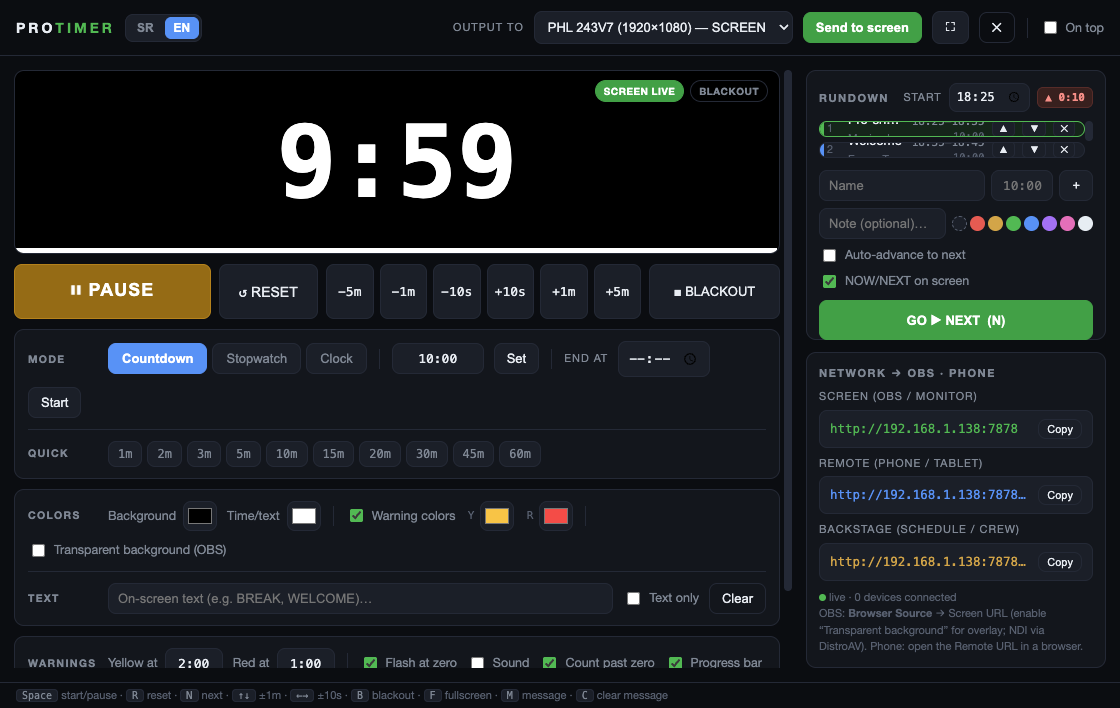
In ProTimer, open Network → OBS · Phone and copy the view-only Timer address, such as http://192.168.1.50:7878.
ProTimer sends a clean, view-only countdown to OBS while Start, Reset, GO, messages and the rundown stay in the separate operator control window.

Keep ProTimer open on the show computer and connect over the same local network.
In ProTimer, open Network → OBS · Phone and copy the view-only Timer address, such as http://192.168.1.50:7878.
In OBS, add a new Browser Source to the scene and paste that URL into its URL field.
Turn on Transparent background in ProTimer for an overlay, or leave the background solid for a full-frame timer.
Test white, yellow, red and overtime states, plus blackout and text, while watching the final program canvas.
The Browser Source receives the current timer state directly from ProTimer. Window chrome, the mouse pointer and the operator controls never need to enter the OBS scene.
A few production habits prevent most Browser Source problems.
For a show-critical OBS source, use the LAN URL displayed by ProTimer. Keep the ProTimer computer and OBS computer on a network you control.
The local page is served by the desktop app. If ProTimer closes or its IP changes, refresh the Browser Source with the new address.
Confirm the transparent background, warning thresholds, fonts and NOW/NEXT layout in the actual scene resolution before doors open.
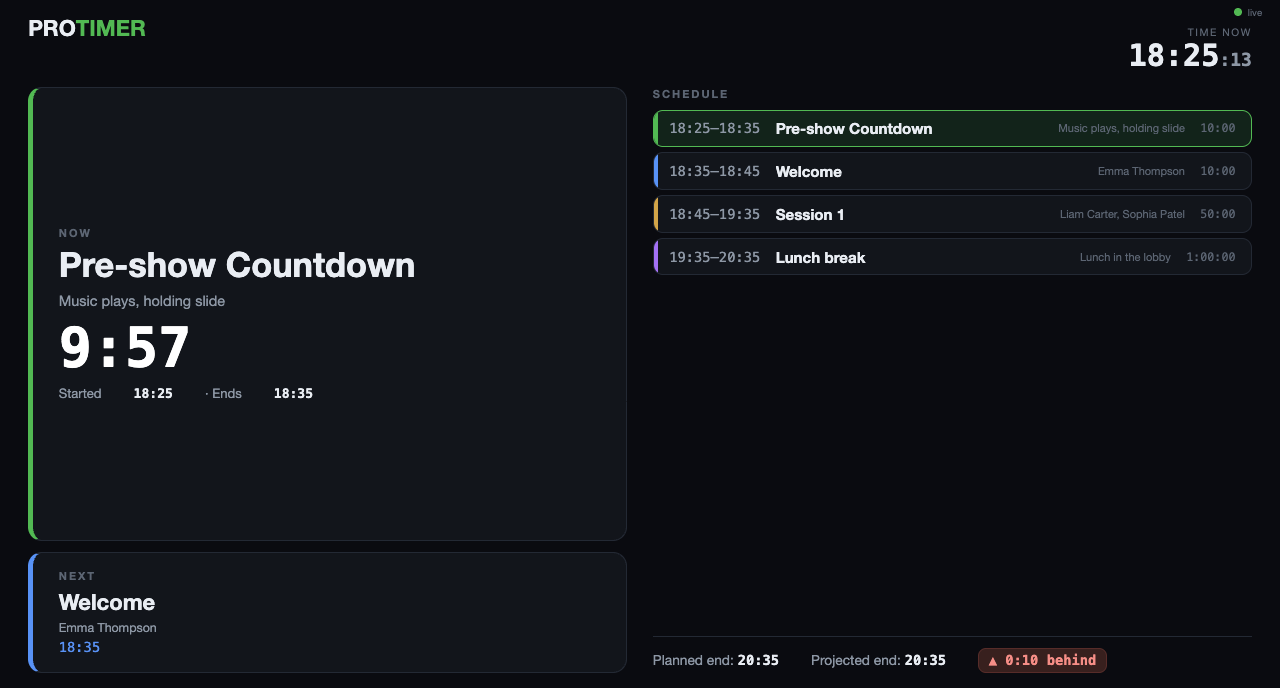
ProTimer does not emit NDI directly. Add the Timer URL to OBS first, then send the finished OBS scene through an NDI output such as the DistroAV plugin.
The same local web output can also open in a normal browser on another computer or TV, while the Backstage URL provides the full NOW/NEXT schedule for the crew.
Answers for common production setups.
Yes. ProTimer is free and open source, and the Browser Source output has no watermark, account or subscription.
Yes, when both computers can reach the local Timer URL. Use a stable production LAN and test the address before the show.
Use the transparent background for an overlay and leave optional NOW/NEXT and text elements off. Resize and position the Browser Source inside OBS.
Confirm ProTimer is open, paste the current Timer URL again, verify both computers are on the same reachable network and refresh the OBS Browser Source.
Choose the next guide for your production.