A free OBS PowerPoint plugin with a separate presenter view
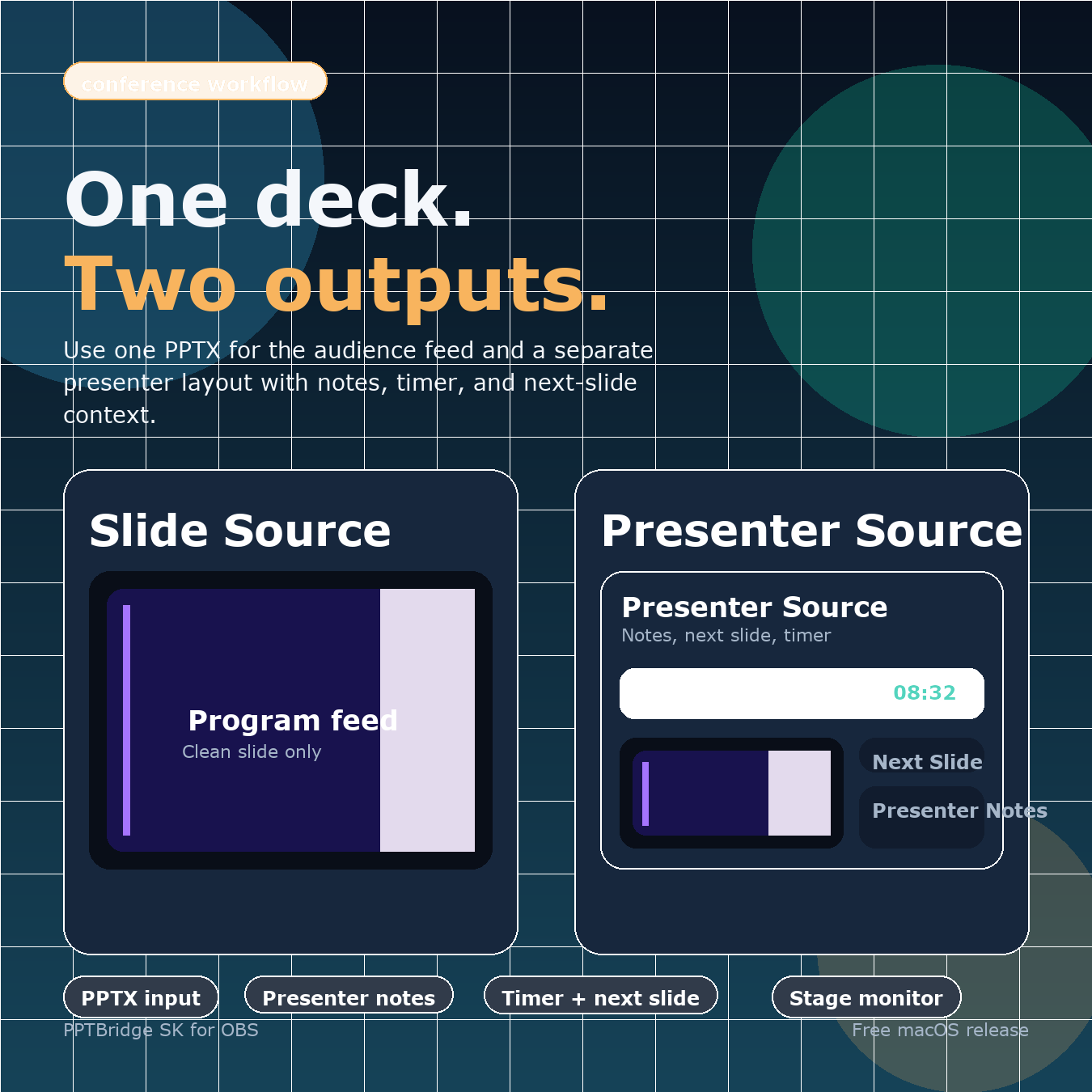
PPTBridge SK puts a clean slide feed and a presenter/confidence view into OBS as two native sources. The audience sees only the deck; the speaker or operator can see notes, the next slide, timer, and cue list.
What problem does it solve?
Normal PowerPoint capture often needs a full-screen slideshow, a second display, or a carefully selected window. That can expose the desktop, put presenter notes on the wrong output, and make slide control depend on keyboard focus. PPTBridge keeps the presentation workflow inside OBS:
- PPTBridge SK Slide is the clean audience source for Program, recording, stream, projector, or switcher.
- PPTBridge SK Presenter is the separate confidence view with current and next slide, notes, timer, and cues.
Both sources can point to the same deck. You can crop, scale, and place them like normal OBS sources without showing the PowerPoint interface.
Install PPTBridge SK
- Quit OBS and download the ZIP for your computer.
- Extract it. On macOS, open
START-HERE-macOS.txtand run1-Install-PPTBridge-SK.command. On Windows, runINSTALL.cmd. - Open OBS in normal mode, not Safe Mode.
- Choose Sources + -> PPTBridge SK Slide and select a
.pptxor.pdffile. - Add PPTBridge SK Presenter to the scene used for the speaker or operator display, then select the same file.
Static preview or live PowerPoint
A PowerPoint file first loads as a static preview so the deck can appear quickly. For builds, transitions, embedded video, and audio, open the source properties and choose Start / Restart PowerPoint Live Mode. The plugin drives the real slideshow while keeping its clean output attached to the OBS source.
PDF files render directly inside PPTBridge and do not require Microsoft PowerPoint. They work well for decks without animations or embedded media.
Control slides during a show
- OBS hotkeys: focused operator control without taking over ordinary arrow keys.
- Presenter clicker: optional Page Up/Page Down capture can route a stage remote to the deck in the current Program scene while the operator uses another application.
- Bitfocus Companion or Stream Deck: use the included Generic OSC template for navigation and status.
- Local OSC: connect QLab, TouchDesigner, or a custom control surface, with feedback for slide number, deck status, timer, and cues.
When this workflow is a good fit
- Conferences, webinars, church streams, classrooms, and live events that use OBS.
- A speaker needs notes and the next slide while Program must remain clean.
- The operator needs to work in OBS or another application while a stage clicker changes slides.
- A show uses Companion, Stream Deck, or OSC for presentation control.
Before using it live
Rehearse the exact deck on the production computer, especially presentations with custom fonts, animations, embedded video, or audio. Confirm the Slide source is in the Program scene, the Presenter source is on the correct confidence display, and every control method reaches the intended deck.