
OBS presentation workflow
Use PowerPoint in OBS without showing presenter notes
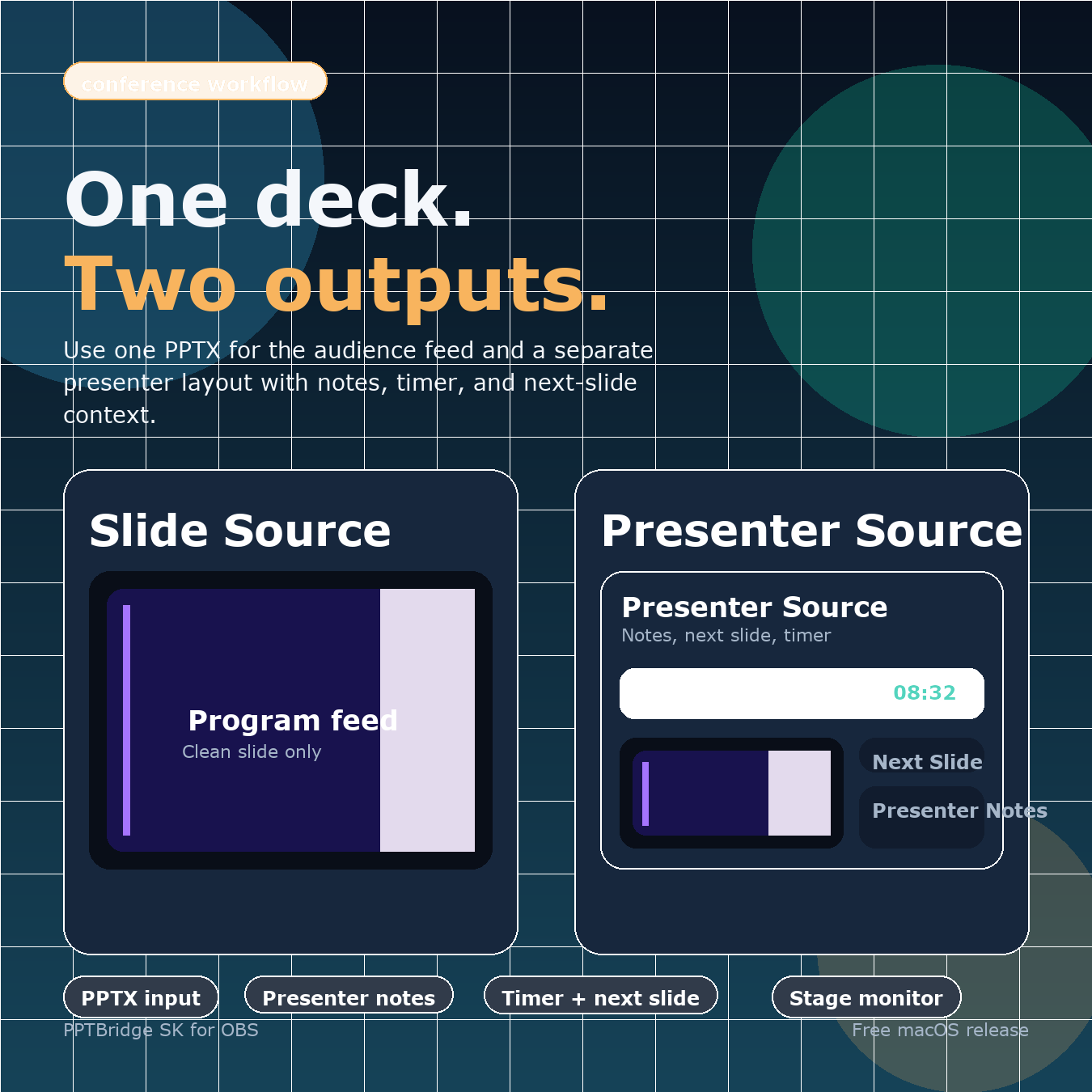
The reliable layout is two OBS sources tied to the same deck: one clean source for Program and one confidence view for the speaker.
Why normal capture gets awkward
Capturing the PowerPoint desktop or Presenter View can expose the cursor, window chrome, notifications, or speaker notes. It also makes OBS depend on which display and window PowerPoint currently owns.
PPTBridge adds both outputs as native OBS sources. The audience never sees the Presenter source unless you deliberately put it in Program.
Set up the two-source workflow
- Install PPTBridge and restart OBS in normal mode.
- In the audience scene, choose Sources + -> PPTBridge SK Slide.
- Select the
.pptxor.pdfdeck. - In a separate speaker-monitor scene, add PPTBridge SK Presenter and select the same file.
- Send the audience scene to Program. Put the Presenter scene on the confidence monitor with OBS Fullscreen Projector.
For animations and embedded video: open either source's properties and choose Start / Restart PowerPoint Live Mode. Static PowerPoint preview and PDF playback do not need live mode.
Customize the confidence view
The Presenter source can emphasize the current slide, next slide, notes, timer, or cue list. Choose a layout preset first, then adjust preview fit, notes size, background color, or optional background image. These changes do not alter the clean Slide source.
Production check
- Confirm the Slide source, not Presenter, is in the Program scene.
- Advance to the final slide and press Next once more; the live slideshow should remain visible.
- Check notes and builds in the exact presentation file you will use.
- Save the OBS scene collection after the rehearsal.