Conference workflow
Set up a stage timer for conference speakers
A good timer workflow gives the speaker one clear number, the operator fast control, and the crew a shared view of what is happening next.
Prepare the stage output
- Connect every display before opening ProTimer.
- Choose the confidence monitor in Control and use Send to screen.
- Set background, digit, yellow, and red colors for the room lighting and display.
- Choose the warning thresholds and decide whether overtime should continue below zero.
Build the rundown
Each cue uses four fields: name, duration, optional note, and optional color. You can add cues manually or paste rows from Excel/Google Sheets in this order:
Session name 00:20:00 Speaker / operator note #2563EBSet the planned show start so every row receives a clock time. Enable NOW/NEXT on the stage output if that information helps the speaker.
Sample file: start with the conference rundown CSV. Open it in Excel or Sheets, edit the rows, copy them, click an empty part of the ProTimer rundown card, and paste.
Give the crew a backstage view
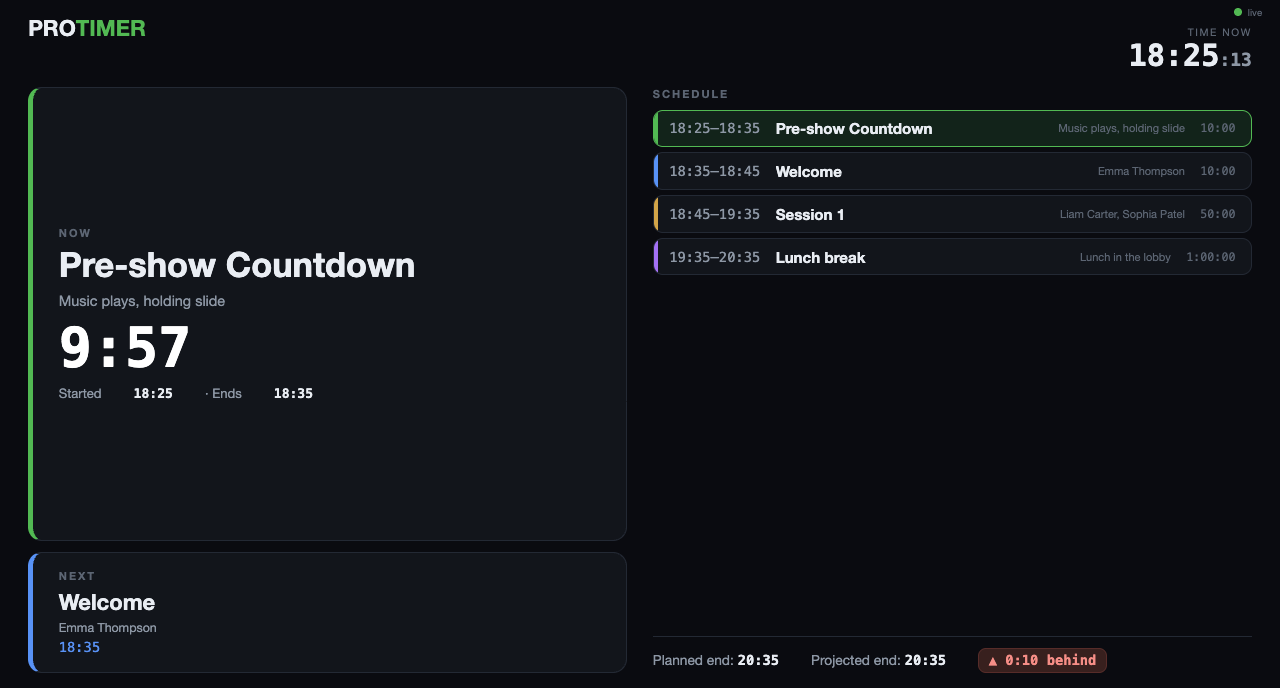
Open the Backstage URL on a stage-manager laptop, green-room display, or phone. It shows the current cue, next cue, full schedule, live remaining time, and whether the projected finish is ahead or behind plan.
Rehearse the operator actions
- START RUNDOWN always loads and starts cue one.
- GO or the
Nkey loads and starts the next cue. - Arrow keys adjust the live countdown when Control is focused.
- Speaker messages appear at the bottom without replacing the timer.
- Blackout hides the output when timing should not be visible.
Five-minute pre-show check
- Confirm Control and Output are on the intended displays.
- Start cue one, GO to cue two, then Reset.
- Open Backstage on the real crew device.
- Send a speaker message and clear it.
- Verify warning colors and overtime behavior.
- Disable sleep, notifications, and automatic updates.
Adding a control surface? Connect Bitfocus Companion and Stream Deck.